It's always nice when my daily Google searches come up with something like this.
She described an app used in the first-grade classroom called Explain Everything, which allows a child to record his own voice describing materials found on a nature walk, or interviewing a classmate about “what makes it rain.” “It’s inquiry-based,” she said, “and it’s a very different model from what parents in the U.S. are doing right now, where we’re looking for apps to promote literacy, or expose children to words, and expecting this moment of learning, instead of looking for apps that make the iPad a tool for allowing them to create.”
Dissertation, Explain Everything 2.0, and a Book
Doctoral Dissertation
I'm already in the participant selection phase for the first of three case studies that are part of my doctoral research. I am exploring the relationship between teachers' beliefs on learning and their instructional practices, using mobile screencasting and qualitative formative assessment as lenses for this examination. My methodology is what I am calling 'Design Based Case Study Research.'
Explain Everything 2.0
I've been bad about posting stuff on this blog mostly because I have spent less time investigating new tools and more time working on getting an upgrade to Explain Everything ready for public release. The feature that I am most excited about is the ability to insert and annotate over videos - live and imported. I'm excited to see what people come up with. YOu can learn more about what's going on with EE 2.0 by
clicking here.
A Book
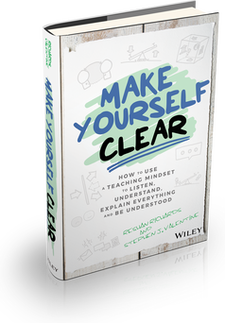
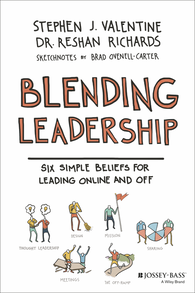
Last summer a colleague and I led a workshop called 'Leading Online' at a couple of summer educational technology conferences. After putting some time into both the planning and the execution of this workshop, we considered ways to take what we had done and allow it to evolve in some other format. I have enjoyed getting familiar with iBooks author where I have been putting together a manual for Explain Everything. We are considering using the iBooks ecosystem for distribution of the book. Tomorrow, I'll post some more about our ideas and plans.
This free app is incredibly engaging. You start with four elements (air, water, earth, and fire) and are required to combine elements to make new materials. Right now there are a total of 330 possibilities and that list keeps growing. While it is not a true scientific environment, it does afford the chance to think about the relationship between certain elements. For example, when you mix water and earth you get mud. Or when you combine lava with air you get stone. There are some silly combinations as well. My favorite so far is that a sword and the energy element combine to create a light saber. Add a human and you've got a Jedi!
Little Alchemy for iPad
The logic of this activity reminds me a lot of the crafting aspect in Minecraft. Some Middle School students at my school have been showing me how to create things in Minecraft worlds, and I soon learned about how intricate the crafting interface is.
Minecraft Crafting (http://minecraft-craftingguide.com/mechanisms.html)
Infographics are the new thing it seems for telling a story or supporting an argument.
Easel.ly is a free web-based tool that lets you work with templates for creating really elegant visual representations of information. There are a bunch of templates and objects that can be added to the infographic, and you can upload your own content.
The interface is very simple and easy to navigate. While I love the updates to the Prezi editor and have generally thought that Glogster is a interesting presentation medium, I find that Easel.ly has better web-based interface design for visual content organization. My only gripe is that it doesn't work well on the iPad!
With this growing use of infographics, I like to remind myself about how easy it is to be persuaded by the arrangement of information rather than the facts. I think it is a skill to create persuavive materials, but I also think that a fine line has to be drawn between persuasion and deception. What would you think if you saw this infographic at the top of this post?
I might be taking a break from Prezi for a little while and start using HaikuDeck for all of my presentations. This really well-designed app for iPad forces the user to focus on the most important point of any slide by limiting the amount of text and images that are on the screen at any given moment. What is most impressive is the amazing and seemingly endless collection of professional photographs which can be used as the backdrop for slides (you can also import photos from the photo roll or take a new picture). It's a free app and it comes with a bunch of great default themes (you can buy more 'themes' as in-app purchases)
I made a few slides for a presentation yesterday and ended up taking screenshots from my device so that I could import them into Explain Everything. I did find that you can export the file. It downloads as a .pptx file though you have to manually append the extension. The slides above are embedded from HaikuDeck.com.
The best screencast tutorials and presentations usually have a script. Following a recent dialogue with
Tim Fahlberg, one of the 'godfathers of screencasting' (at least in my opinion), I have decided to share two ways for adding captions to Explain Everything projects.
Explain Everything's Text Tool (optional iPad 3 Voice Recognition)
All of the text in the video below was actually inputted by voice on an iPad 3. I could have typed it in and I did have to correct a few incorrect words but it was really easy to do. In order to use the iPad 3 voice recognition you need to have an internet connection (it's like Siri) and you cannot be in the recording mode of Explain Everything. When paused or stopped, you can add a text box, speak in the text, save the text element, and then record your animation. This might be a good alternative to the YouTube transcript service shown below because the text show up in the source file.
YouTube Transcript (beta)
YouTube Caption Transcript allows you to upload a script file and it will use Google's speech recognition technology to align your script with the audio from your uploaded Explain Everything file. I found that using a plain text document (*.txt) works best. In Word or Pages you can save in this file format. The biggest drawback is that YouTube videos on the iPad (from the app or in a browser) don't appear to support closed captioning yet so you have to watch on a computer in order to have the captions show up. Press the 'CC' button to turn the captions on if they aren't already.
Here is the Prezi I shared during my Mobile Technologies session at the Teachers College Educational Technology Conference. You might need to make it full screen in order to see some of the text in the tables and images. Enjoy!